How to set the default page on new tab in Edge, Chrome and Firefox with Intune
I recently had a request to set a new homepage URL on all devices in the company. The requirement was to simply make the default tab or new browser window/page open to our new internal company Intranet page. Sounds easy enough!
In this blog post, I will outline the steps I used to set this setting for the big-three browsers - Edge, Chrome and Firefox.
The settings to apply are pretty self-explanatory after you get them in place, however following each vendors documentation can be a little confusing, so my hope in this post is to simplify the steps into 1-easy-to-understand tutorial.
Lets get started:
MS Edge
MS Edge is the easiest to implement.
- Login on Microsoft Intune Admin Center
- Click on Devices > Configuration
- Click on + Create Profile
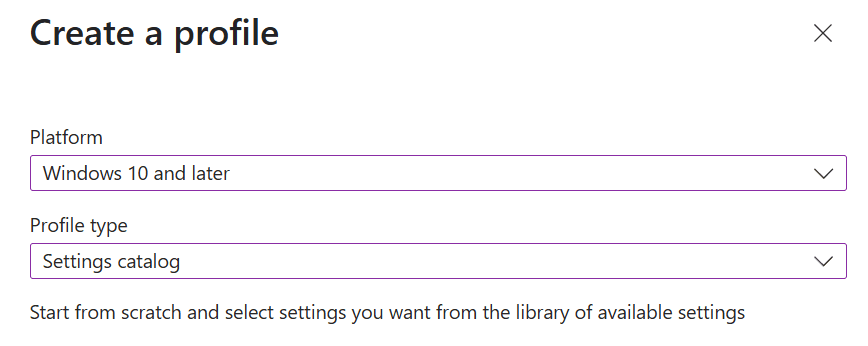
- Select Platform as Windows 10 and later
- Select Policy type as Settings catalog
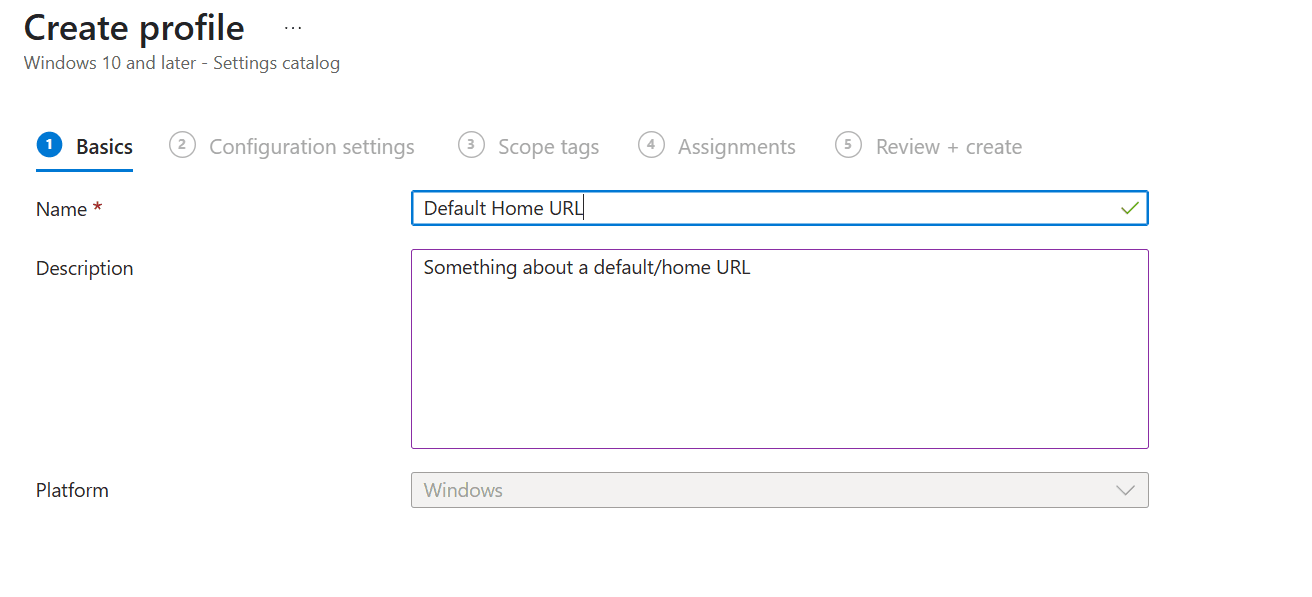
- Provide a Name and Description (optional) of the Policy.
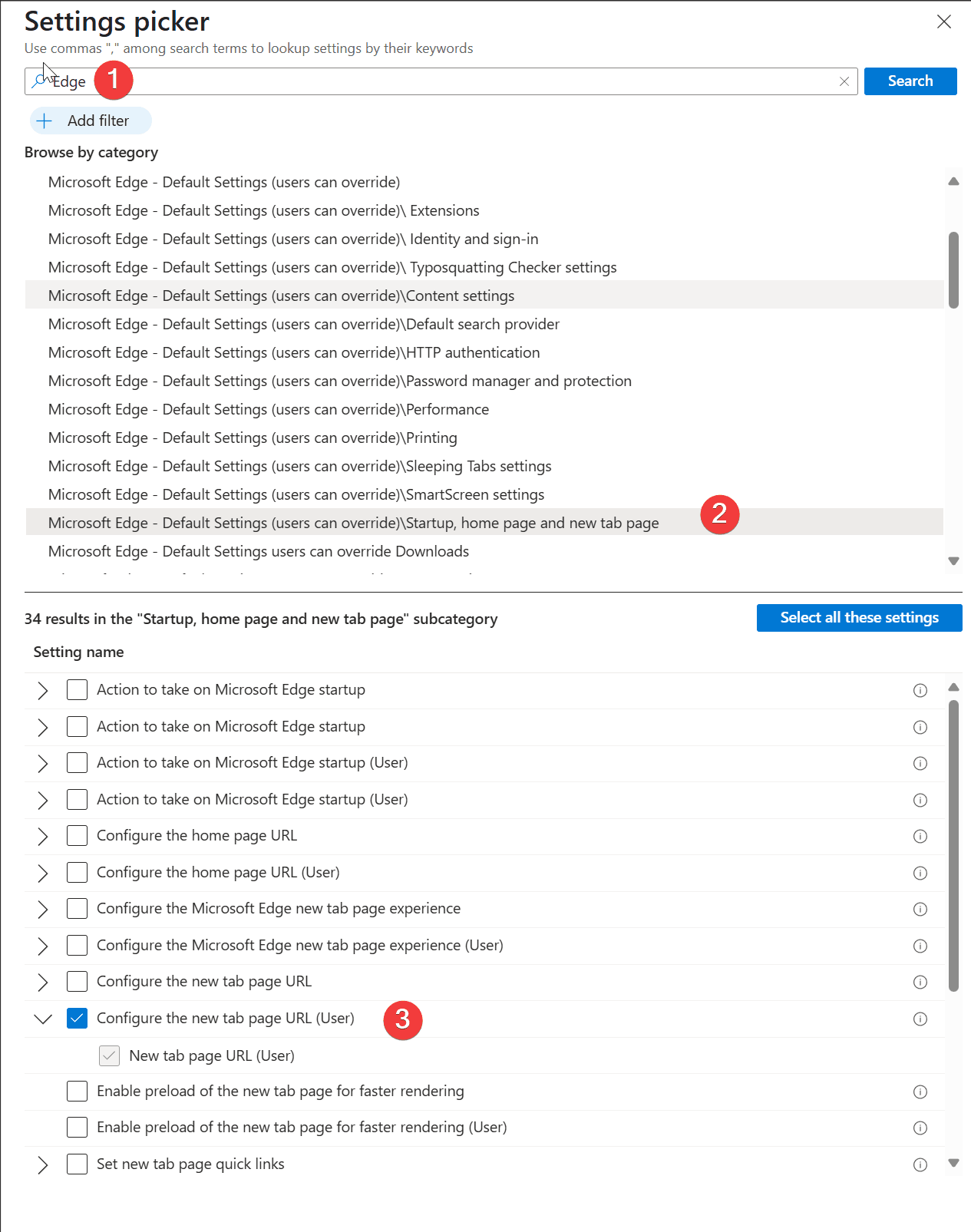
- From the Configuration settings tab, select + Add settings
- In the Settings picker blade, Search for "Edge". Then use the image below.
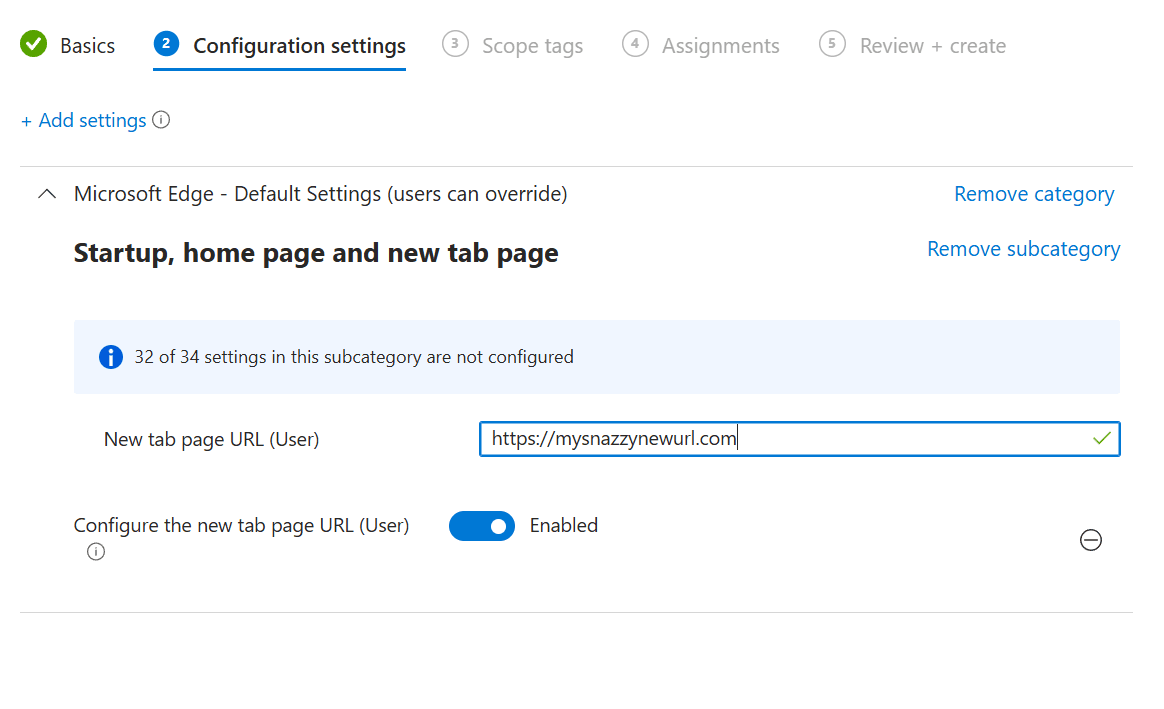
- After the setting is selected, configure the setting to Enabled, and add the URL
- Select Next and configure any Scope tags if applicable.
- Assign the profile to your group of users.
- On the Review + Create tab, review all the settings and confirm everything looks good, then select the blue Create button at the bottom of the page.
Yay! 1 down, 2 more to go.
Google Chrome
Google Chrome is nearly identical to MS Edge to implement.
- Login on Microsoft Intune Admin Center
- Click on Devices > Configuration
- Click on + Create Profile
- Select Platform as Windows 10 and later
- Select Policy type as Settings catalog, Select the blue Create button.
- Provide a Name and Description (optional) of the Policy. Select the blue Next button at the bottom of the screen.
- From the Configuration settings tab, select + Add settings
- In the Settings picker blade, Search for "Google". Then use the image below.
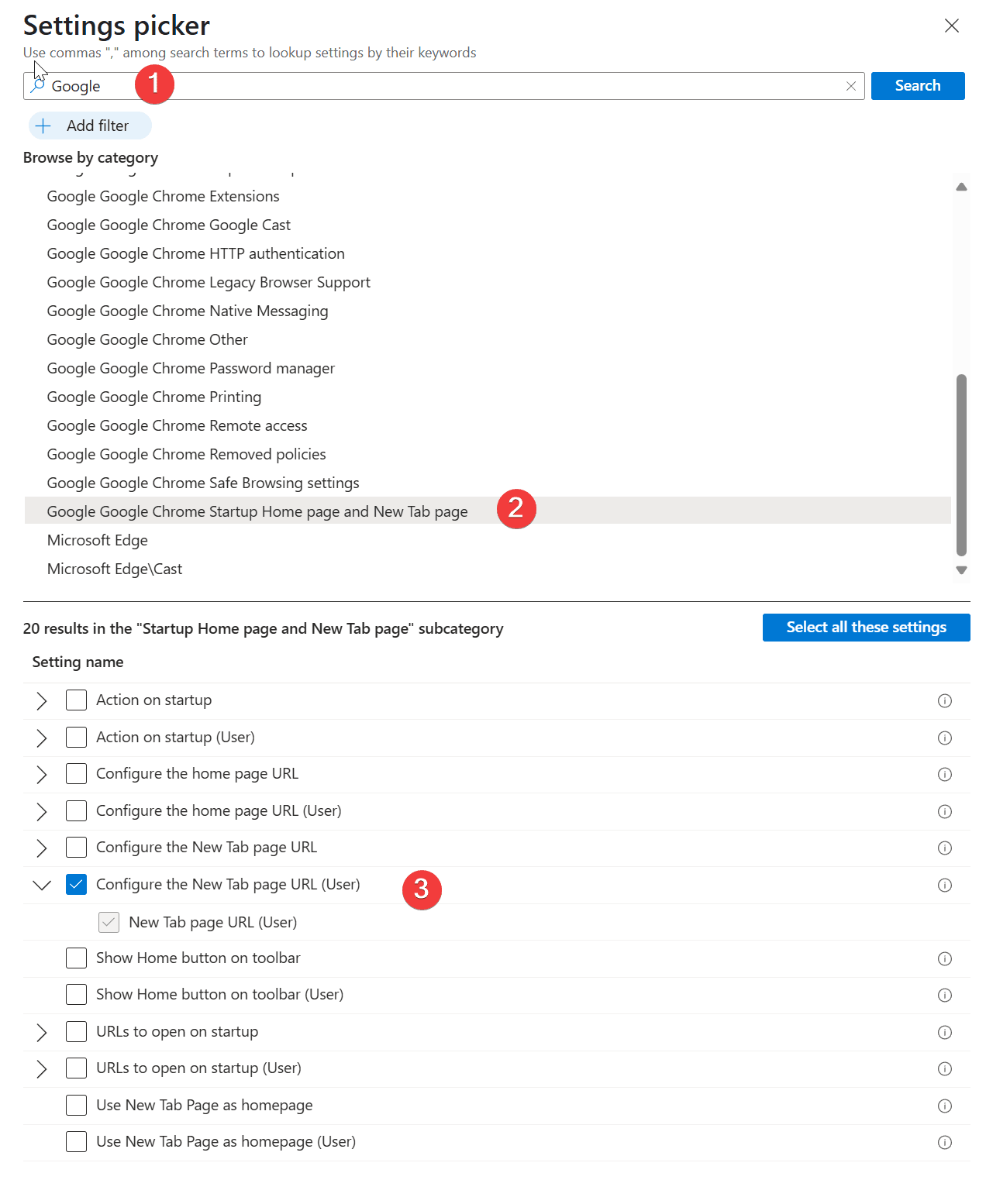
- After the setting is selected, configure the setting to Enabled, and add the URL
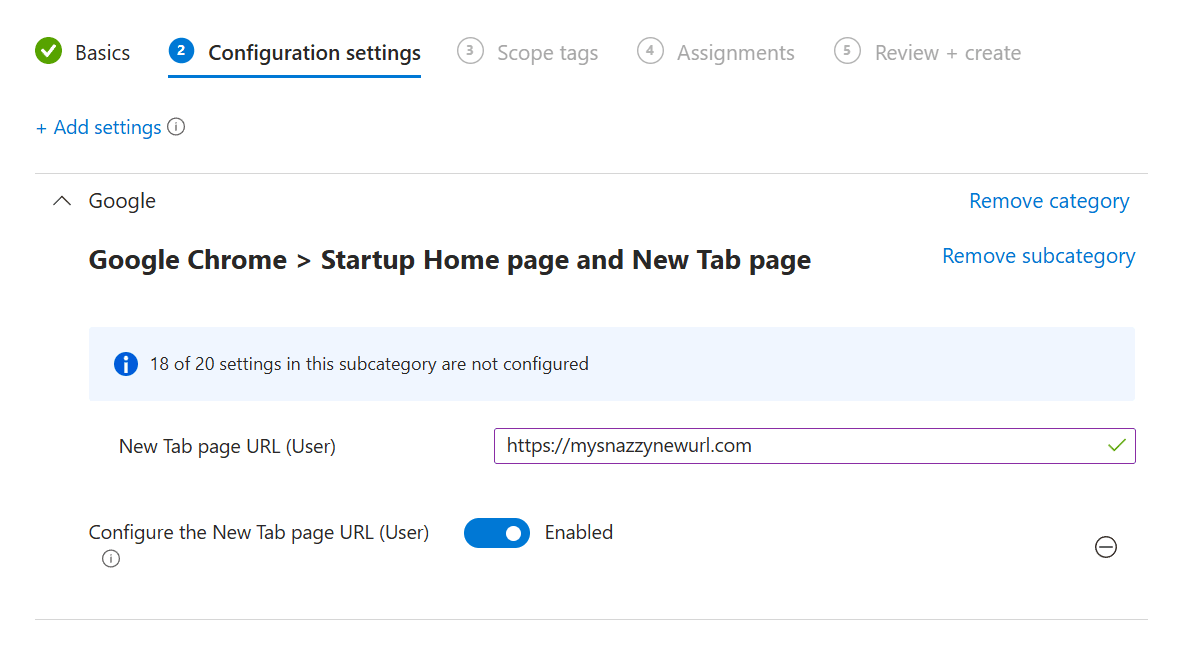
- Select Next and configure any Scope tags if applicable.
- Assign the profile to your group of users.
- On the Review + Create tab, review all the settings and confirm everything looks good, then select the blue Create button at the bottom of the page.
That's two out of the way - now it's time for the tough one.
Unfortunately, Firefox doesn't have settings catalog parameters available in Intune as of the time of this tutorial. Here's the 50-thousand-foot-summary - We download template files from their Github, upload them into Intune, and then use those templates to assign some parameters to FireFox.
Okay, Last one best one!
Mozilla Firefox
- First we need the ADMX, and ADML files from their GitHub page here and unzip the file.
- Login on Microsoft Intune Admin Center
- Click on Devices > Configuration
- Click on Import ADMX tab at the top of the page.
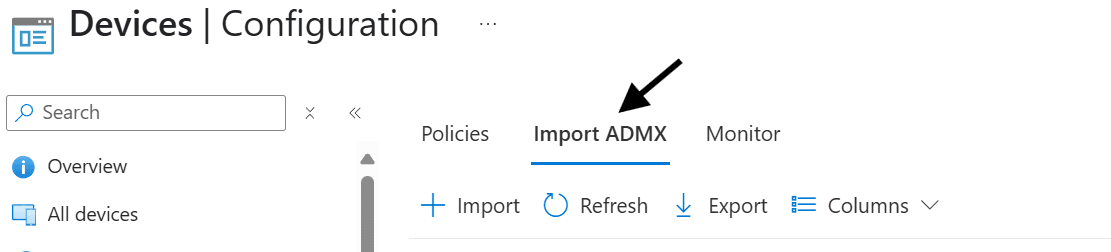
- Select + Import
- Import the
mozilla.admxandmozilla.admlfiles. Make sure the status shows Available. - Import the
firefox.admxandfirefox.admlfiles.
NOTE - If you uploadÂ
firefox.admx beforeÂmozilla.adml, the import will fail.
- Head back to : Devices > Manage devices > Configuration > Create > New policy.
- Select Platform as Windows 10 and later
- Select Policy type as Templates, then Imported Administrative templates (Preview) Select the blue Create button.
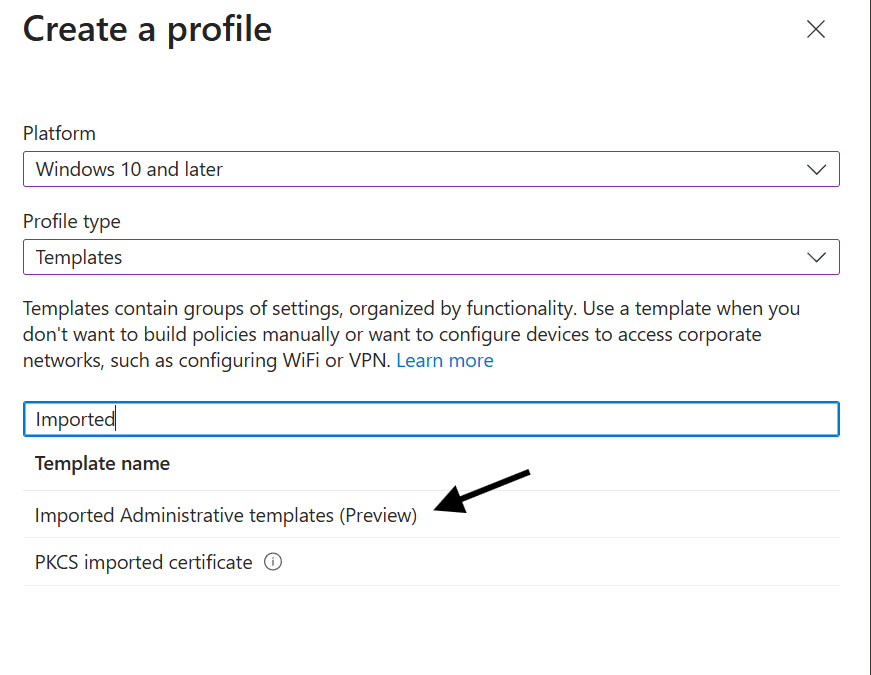
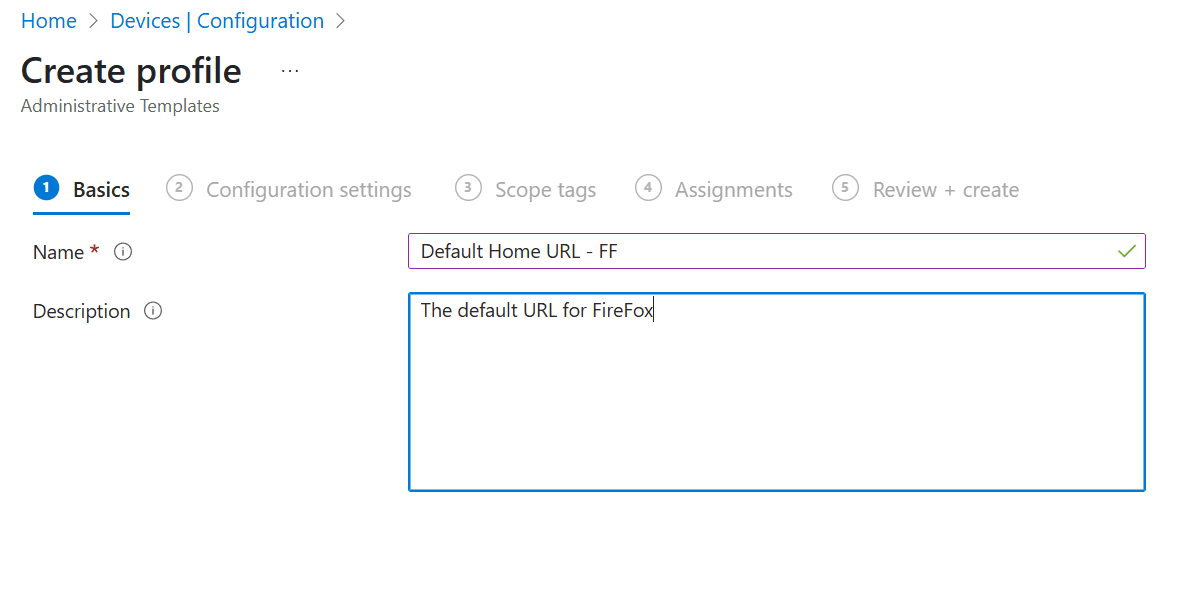
- Provide a Name and Description (optional) of the Policy. Select the blue Next button at the bottom of the screen.
- From the Configuration settings tab, navigate to the tree to "User Configuration > Mozilla > Firefox > Home page".
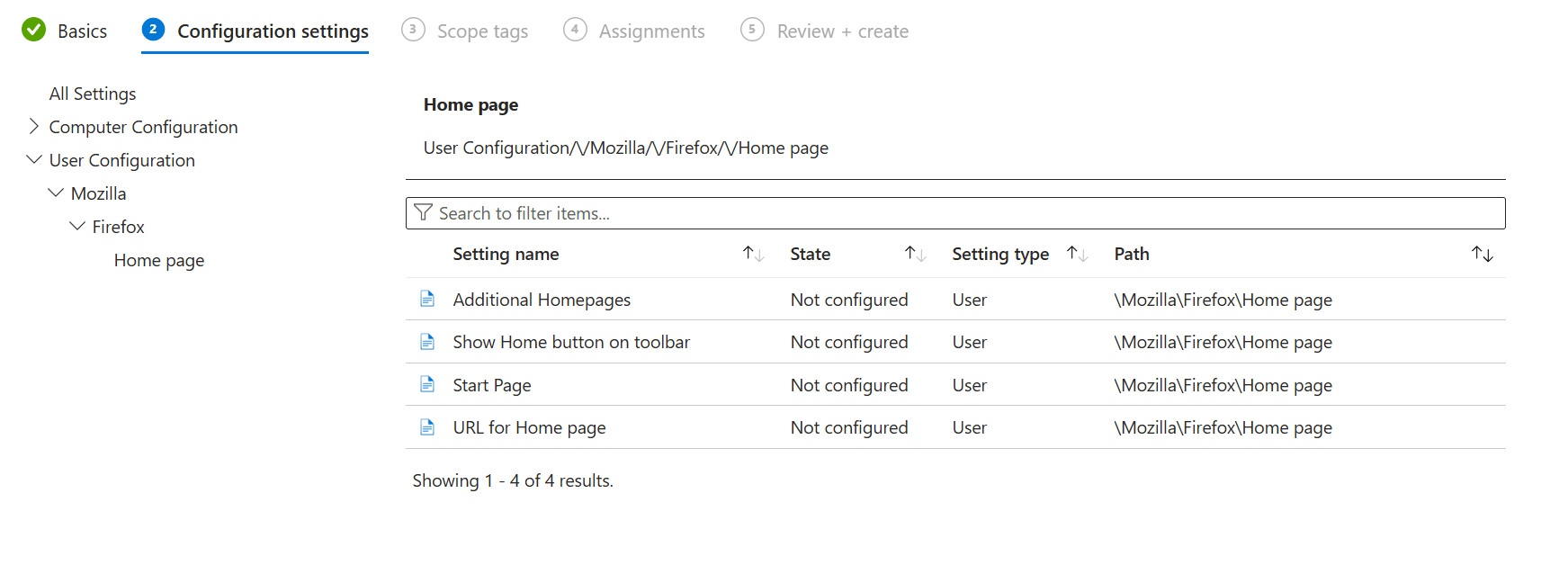
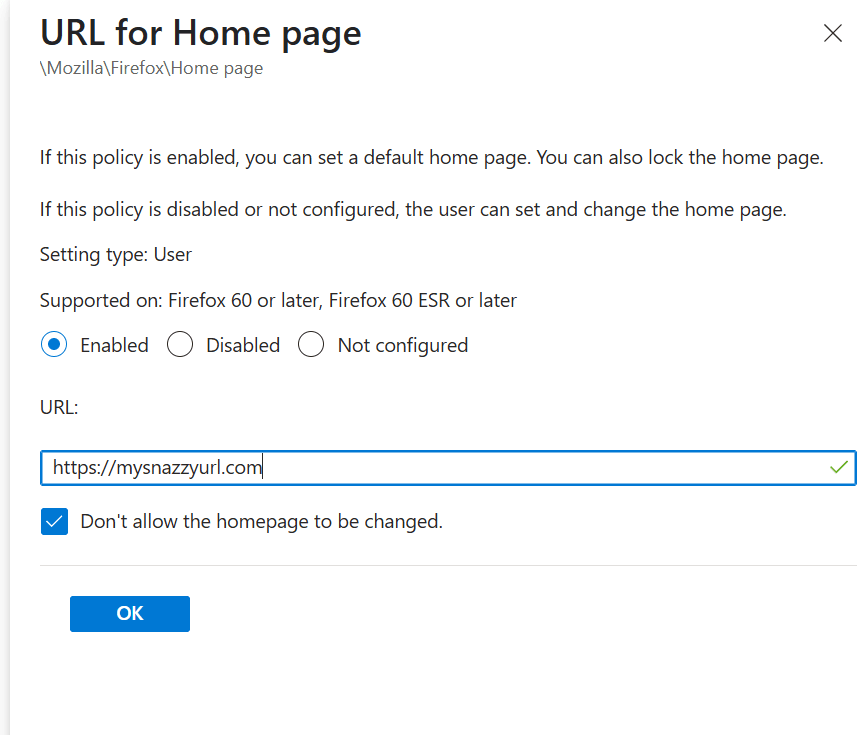
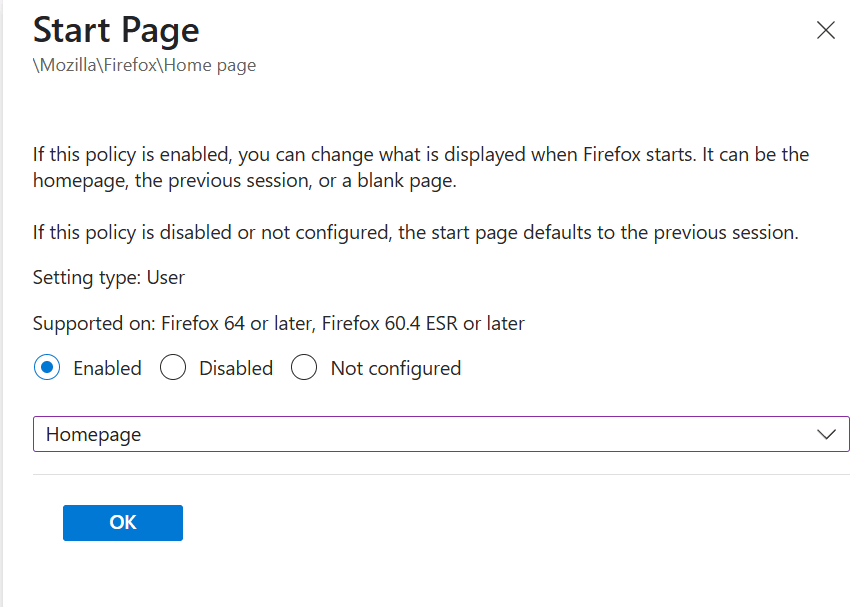
- Select both "URL for Home page" and "Start Page" settings.
- Select Next and configure any Scope tags if applicable.
- Assign the profile to your group of users.
- On the Review + Create tab, review all the settings and confirm everything looks good, then select the blue Create button at the bottom of the page.
This should do it. After the next sync cycle, when you open a new browser window or a new tab in any of these browsers, the default URL should be the initial web page to be displayed/loaded.
A couple followup notes in terms of expectations:
- This list isn't locked down. People will be able to navigate away from this page.
- If you open a new tab, the default page will open in the new tab
- On edge, the URL is hidden. That doesn't stop you from navigating away or opening any additional browser tabs.
Tested on :
- Windows 11 - 24H2
- OS Build : 26100.3775
- Chrome version 135.0.7049.115
- Microsoft Edge Version 135.0.3179.98
- Firefox version 137.0.2
Troubleshooting Issues
- If any settings aren't applying even if the profile appears to have deployed correctly : Confirm that you aren't attempting to apply Computer settings on Users or vice-versa. The settings I used above are all "User" targetted. Its also best practice to NOT mix deployments comprised of both.
0 Comments
Leave a Comment