How to install the Microsoft Graph PowerShell module
he Microsoft Graph PowerShell module is the preferred method for managing your Microsoft cloud services, such as Intune and Entra, through the command line. It has replaced the now legacy MSOnline powershell module which has been deprecated as of April of this year.
In this post, we'll cover the steps needed to install the MS Graph PowerShell module, verify it works, and perform a couple examples of its use.
Prerequisites
To install the module, you need a couple things. You likely already have these if your running a later version of Windows 10, or Windows 11, but lets just throw them here as a reminder.
- PowerShell 5.1 or newer
- .NTE Framework 4.7.2 or newer
- Latest version of PowerShellGet
I am going to start with installing PowerShell 7. The easiest way to do this with with winget.
winget install --id Microsoft.Powershell --source winget
The install from winget will look similar to below:

Or download it from the official GitHub releases.
iex “& { $(irm https://aka.ms/install-powershell.ps1) } -UseMSI”
If you install via the msi - Just leave all of the options as their defaults.
Once the installation completes, close your existing PowerShell window and search for PowerShell 7 in your start menu.
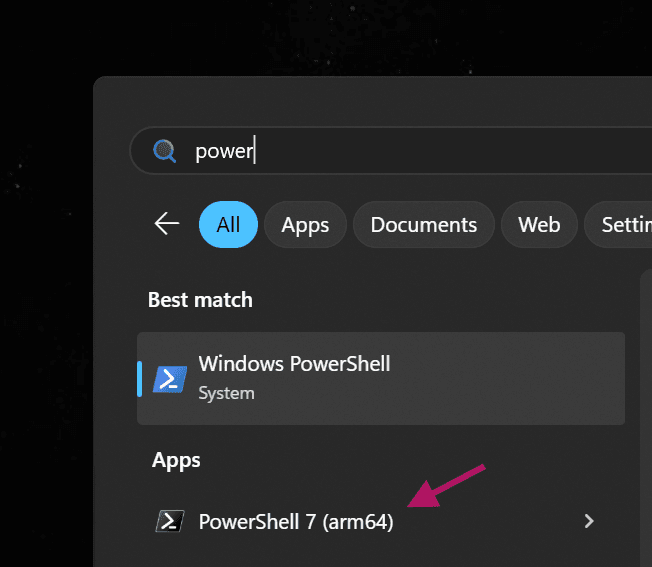
With that out of the way, we can install Microsoft Graph
Install Microsoft Graph PowerShell Module
Use the following examples to install the latest (stable) version of the Microsoft Graph PowerShell module from the PowerShell Gallery.
To install the module for the current user scope:
Install-Module Microsoft.Graph -Scope CurrentUser
Or to install for all users on your system: (you will need local admin rights on your system):
Install-Module Microsoft.Graph -Scope AllUsers
Both commands can both be run in PowerShell 5.1 or PowerShell 7; however, installing one does not install it for the other.
Below is an example of the command being used to install for all users.
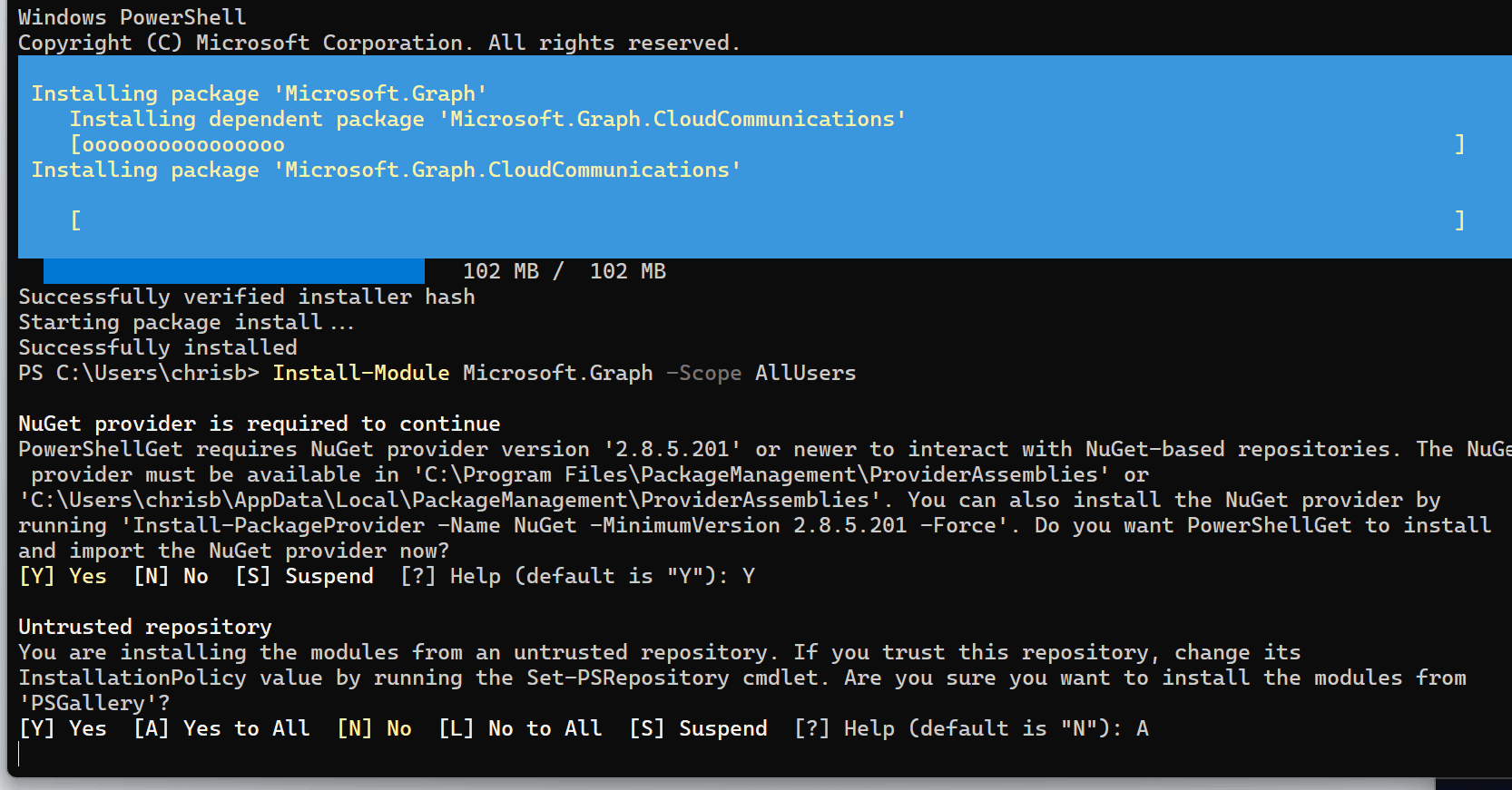
At this point, you may want to verify that everything looks good, so you can run for following command to confirm which version has been installed on your system.
Get-InstalledModule | Where-Object {$_.Name -match "microsoft.graph"}
You should see something similar to the following:

We're now set to connect to graph and perform some magic! Yay!
Connect to Microsoft Graph with PowerShell
Depending on your needs, to interact with Graph you need to outline the parameter's of whether you just need to read data, or if you need to write it as well.
If you want ‘read’ and ‘write’ access to all user accounts in your tenant:
Connect-MgGraph -Scopes "User.ReadWrite.All"
Or if you only need to read the data you can use:
Connect-MgGraph -Scopes "User.Read.All"
This could also be applied to groups:
Connect-MgGraph -Scopes "Group.ReadWrite.All"
For a full breakdown of all the available permissions you can specify when connecting to Graph, refer to the permissions reference sheet from Microsoft: https://learn.microsoft.com/en-us/graph/permissions-reference
What can we do?
So now that we have PowerShell installed, the MS Graph module loaded, and we are connected, below are a few real life uses for the Graph Module.
Setting Azure User account passwords to expire / not expire:
Connect-MgGraph -Scopes "User.ReadWrite.All"
# Set password to never expire
Update-MgUser -UserId "user@domain.com" -PasswordPolicies "DisablePasswordExpiration"Connect-MgGraph -Scopes "User.ReadWrite.All"# Set password to expire
Update-MgUser -UserId "user@domain.com" -PasswordPolicies "EnablePasswordExpiration"Verify what password policy is in effect:
Connect-MgGraph -Scopes "User.ReadWrite.All"

Get-MgUser -UserId "user@domain.com" -Property UserPrincipalName,PasswordPolicies |
Select-Object UserPrincipalName, @{Name="PasswordNeverExpires";Expression={$_.PasswordPolicies -contains "DisablePasswordExpiration"}}
Disable the "Force change password at next sign-in" setting for an Azure AD user:
Connect-MgGraph -Scopes "User.ReadWrite.All"

Update-MgUser -UserId "user@domain.com" -PasswordProfile @{ ForceChangePasswordNextSignIn = $false }
This assumes the user already has a password set. If you're also resetting the password, you can include it like this:
Connect-MgGraph -Scopes "User.ReadWrite.All"

Update-MgUser -UserId "user@domain.com" -PasswordProfile @{
    Password = "NewSecureP@ssw0rd!"
    ForceChangePasswordNextSignIn = $false
}
Finally, enable the "Force change password at next sign-in" setting for an Azure AD user:
Connect-MgGraph -Scopes "User.ReadWrite.All"

Update-MgUser -UserId "user@domain.com" -PasswordProfile @{ ForceChangePasswordNextSignIn = $true}
These are all real life use cases that I have used the MS Graph PowerShell module for. I'd love to see some of your uses - feel free to share them in the comments below.
0 Comments
Leave a Comment